Support: in-app messenger, inbox and FAQ
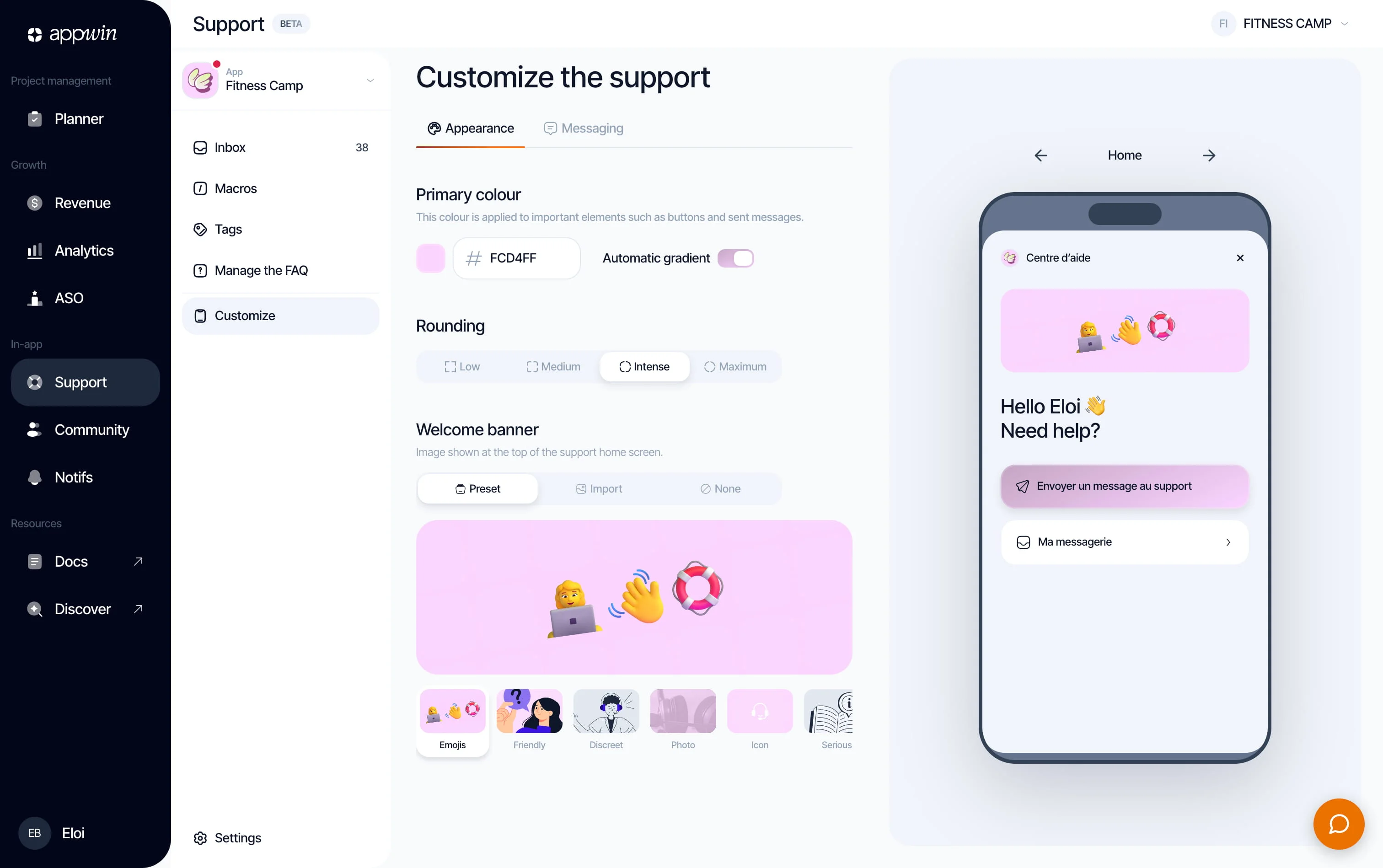
Support adds a help chat to your app: the user writes to your team, who reply from a shared inbox. A built-in FAQ absorbs the repetitive questions. (It is a conversation with your team, not messaging between users.)
No account to create: Appwin Core recognises the user by their device, the same person as in Community. Everything is driven from the dashboard, under Support: inbox, macros, tags, FAQ and chat design.
Installation
- 1
Install Appwin Core and Support
Support relies on Appwin Core. Not installed yet? Start with the Quickstart, which installs Core and your modules for every platform.
Compatibility and packages per platform
Platform Package Symbol iOS 16 SPM product AppwinSupportAppwinSupportAndroid 7.0 (API 24) io.appwin:appwin-supportio.appwin.support.AppwinSupportFlutter 3.3 appwin_supportAppwinSupport.instanceReact Native 0.73 @appwin/react-nativeAppwinSupport - 2
Initialize Support
Call
initialize()at startup, after Appwin Core, and gate your own entry point on thereadyverdict: the SDK does not own your navigation, so it cannot hide your help button.import AppwinSupport // After AppwinCore.configure, before showing the entry point. guard await AppwinSupport.initialize().isReady else { return }
Available methods
Check the module state
isReady returns the last verdict from initialize() without another call. Use
it to gate your help button after startup. Identity is not part of Support's
surface: identify, updateUser and logout live on AppwinCore.
Open the messenger
The messenger is rendered natively by the SDK. Embed it in your navigation
with messengerView(), or present it modally with presentMessenger().
presentConversation(id) opens straight onto one conversation, which is what a
notification tap needs (iOS and Android).
Embedded, in a tab
TabView {
  HomeView()
    .tabItem { Label("Home", systemImage: "house") }

  AppwinSupport.messengerView()
    .tabItem { Label("Help", systemImage: "bubble.left") }
}
Modally
AppwinSupport.presentMessenger()
Straight onto a conversation
AppwinSupport.presentConversation(id: conversationId)
Attaching your user
Left alone, the conversation belongs to the device. AppwinCore.identify
attaches it to your app's user, once at sign-in: identity is owned by Core, so
Community recognises the same person at the same moment, and the id is kept
across launches. Support has no login function of its own.
AppwinCore.updateUser enriches the record your team sees in the inbox without
changing identity. An omitted field is not overwritten: an app that only
knows the email does not erase the name. The fields are email, name,
avatarUrl, language, timezone, location and plan, on every platform.
try await AppwinCore.identify(
  externalId: user.id,
  attributes: AppwinUserAttributes(email: user.email, name: user.displayName)
)

try await AppwinCore.updateUser(AppwinUserAttributes(plan: "pro"))

// Sign-out: back to an anonymous visitor.
await AppwinCore.logout()
The inbox
Support → Inbox. The list of the project's conversations, or of every app in the organisation. Search covers message content, and a tag filter combines with the others: "Open" plus the "Bug" tag gives the queue of what is broken.
| Filter | What it shows |
|---|---|
| Open | What is waiting for an answer |
| Urgent | What the team marked urgent |
| Starred | What you keep at hand |
| Resolved | The archive |
| By tag | One specific theme |
The thread looks like a messaging conversation; what your team writes appears on the agent side, with the name and picture set in Customise. A conversation is marked resolved once handled, and a new message from the user reopens it, so nothing is lost because someone closed it too early.
Macros
Support → Macros. Pre-written, reusable replies. A macro carries a name ("Refund request"), some content, and an optional shortcut you type in the conversation to insert it. It is global (every app in the organisation) or limited to certain projects: a macro that mentions a price specific to one app has no business in the others.
Start from a real reply you have already written three times, leave the parts
that need personalising in plain sight, and give it a short, memorable shortcut
(refund, bug-ios). A macro is a starting point, not an automatic send: it is
inserted into the reply field, where you read it again and adjust it.
Tags
Support → Tags. Coloured labels to classify conversations. Like macros, a tag is global or limited to certain projects, and it sorts by usage ("most used"), which quickly shows the recurring themes. Deleting a tag removes it from every conversation that carried it; the action is confirmed, and permanent.
Tags are also a measurement tool. Three months of tagged conversations give you the list of subjects that cost the team the most time, the starting point of a good FAQ.
FAQ
Support → Manage the FAQ. Articles filed by category, shown in the SDK's help centre. Categories are renamable, reorderable and collapsible; an article is a question and a formatted answer (bold, lists, emoji); a switch shows the FAQ in the app or not, without touching the articles.
An FAQ that actually helps:
- Filter the inbox on Resolved and pick the five questions that come back most.
- Create one category per real theme ("Subscription", "Account", "Known bugs"), not per internal org chart.
- Write the question in the user's words: "How do I cancel my subscription?", not "Billing cycle management".
- Answer in three sentences. An article that requires scrolling is not read.
- Publish, then watch: if the question keeps arriving, the article is either unfindable or unclear.
Customising the messenger
Support → Customise. Three tabs, with a live preview. Everything is re-read by the SDK on open, so no change requires resubmitting your app.
| Tab | What you set |
|---|---|
| Messaging | Agent name and picture, welcome message |
| Home | What shows when the help centre opens |
| Design | Colours, corner radii, logo |
The welcome message is what someone opening the messenger for the first time sees. It sets the tone and frames expectations: "We are a small team based in Nice, we answer within 24 hours" beats "How can we help you?".
Settings
Support → Settings.
| Tab | Contents |
|---|---|
| Languages | The team's preferred language, automatic translation of incoming messages |
| SDK | App ID, enabling the product |
| AI | Assisted replies |
Automatic translation translates your users' messages into your language, so the conversation continues without an intermediary. It does not replace your reply: it saves you guessing.