Community: in-app feed, comments and profiles
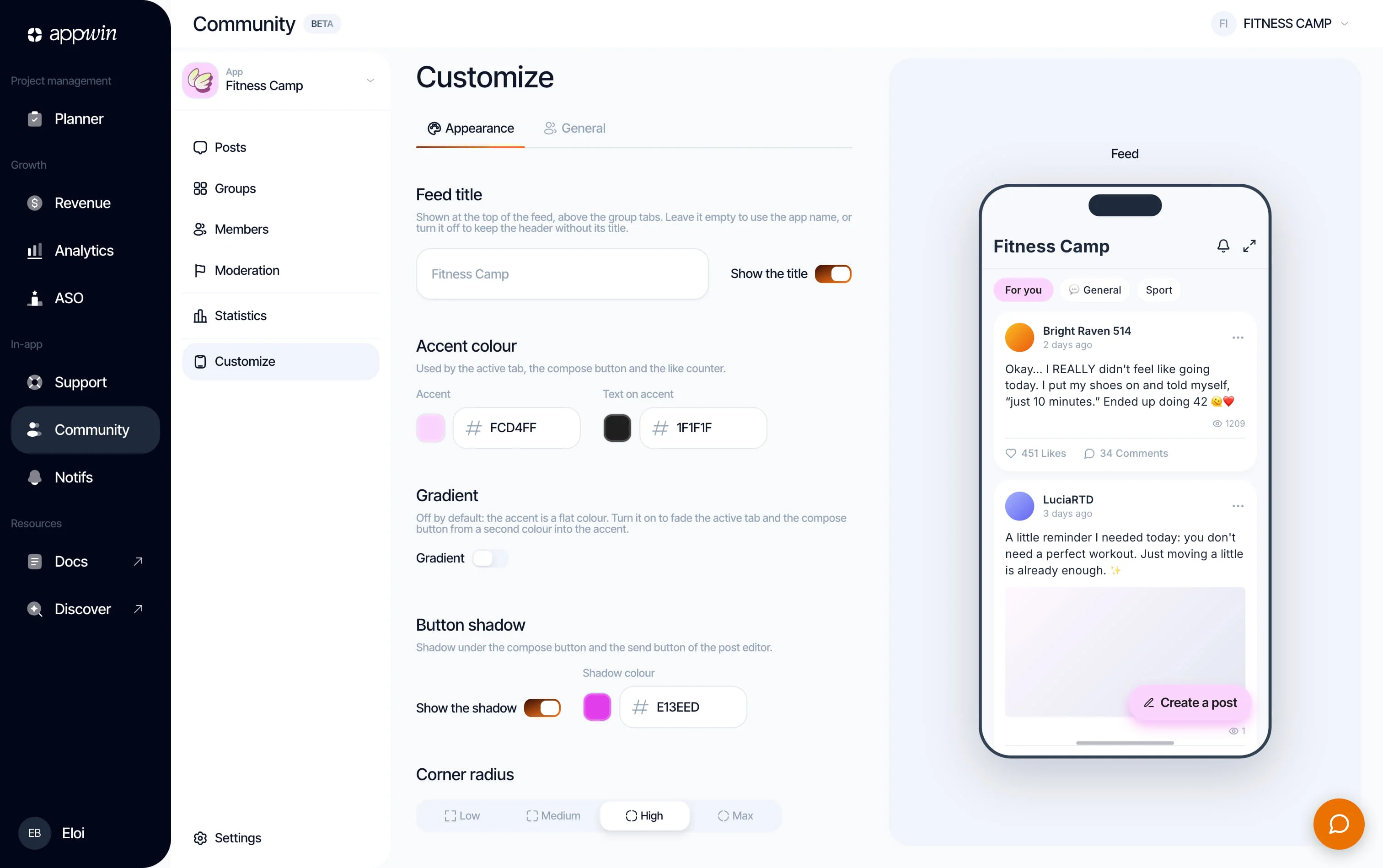
A social feed inside your app: posts, comments, reactions, profiles. The screen is rendered natively by the SDK, matching your app rather than a webview grafted on top.
The content, the moderation and the settings are driven from Community in the dashboard, once you have picked the app (one community per app). The member's identity comes from Appwin Core: one login, the same person across every product and all their devices.
Installation
- 1
Install Appwin Core and Community
Community relies on Appwin Core. Not installed yet? Start with the Quickstart, which installs Core and your modules for every platform.
Compatibility and packages per platform
Platform Package Symbol iOS 16 SPM product AppwinCommunityAppwinCommunityAndroid 7.0 (API 24) io.appwin:appwin-communityio.appwin.community.AppwinCommunityFlutter 3.3 appwin_communityAppwinCommunity.instanceReact Native 0.73 @appwin/react-nativeAppwinCommunity - 2
Initialize Community
Call
initialize()at startup, after Appwin Core. The feed appears once three conditions are met:configurecalled at launch, the community enabled in the dashboard (Customise → General → Community enabled), andinitialize()answeringready. Gate your tab on that answer: the SDK does not own your navigation, it cannot hide it for you.import AppwinCommunity await AppwinCommunity.initialize()A debug build of your app unlocks Community even without the plan: see Trying it without the plan.
Available methods
Attaching the member to your user is AppwinCore.identify /
AppwinCore.logout(), not a Community function (see
Identity).
Showing the feed
Your app provides an entry point (a tab, a button) and the SDK draws the rest.
SwiftUI - in a tab
import AppwinCommunity

TabView {
  HomeView()
    .tabItem { Label("Home", systemImage: "house") }

  AppwinCommunity.communityView()
    .tabItem { Label("Community", systemImage: "bubble.left.and.bubble.right") }
}
UIKit
let communityVC = AppwinCommunity.communityViewController()
communityVC.tabBarItem = UITabBarItem(
  title: "Community",
  image: UIImage(systemName: "bubble.left.and.bubble.right"),
  tag: 1
)
tabBarController.viewControllers = [homeVC, communityVC, profileVC]
Modal
AppwinCommunity.presentCommunity()
When Community is not available
initialize() can answer something other than ready: the plan does not
include Community, the studio switched it off, configure was not called, or the
server could not be reached. The embedded view handles each of these by itself,
and follows the verdict live: it swaps between its placeholder and the feed
when the answer changes (a toggle flipped in the dashboard, a plan that lapses),
without your app remounting anything.
What the member sees
A centred "Community opens soon" screen, translated like the rest of the SDK, using the Community palette rather than your theme (no configuration could be loaded).
In a debug build, a developer alert sits at the top: the reason (not in the
plan, switched off, configure missing, no answer from the server, initialize()
never called), how to fix it, the result as the SDK logs it (for example
unavailable(plan)) and a button to where the fix happens. Release builds never
show it. The same alert sits above the feed when Community is open only because
the build is a debug one.
presentCommunity() does not show a placeholder: while Community is not ready,
it does nothing and logs why.
Your own placeholder
Pass your own UI for the not-ready case. It receives the current verdict (on iOS
and Android, nil / null when initialize() has not been called yet).
AppwinCommunity.communityView { result in
  ComingSoonView()
}
.tabItem { Label("Community", systemImage: "bubble.left.and.bubble.right") }
UIKit takes a controller builder:
let communityVC = AppwinCommunity.communityViewController { result in
  ComingSoonViewController()
}
Trying it without the plan
A debug build of your app gets Community even when your organisation's plan does not include it yet, so you can integrate it and demo it before subscribing:
- every SDK request from a debug build carries
X-Appwin-Build: debug(iOS: the SDK compiled in the Debug configuration; Android: your app isdebuggable, whatever the SDK's own build); - when the plan lacks Community, the server answers
readyto that build, whatever the dashboard toggle says (the dashboard hides the toggle in that case anyway); initialize()returnsready, and the SDK logs once, in the console:
[Appwin] community is unlocked because this is a debug build: the organisation's plan does not include it, so release builds will get unavailable(plan).
Release builds still need the plan: the same app, archived for TestFlight or
the Play Store, gets unavailable(plan) and shows the placeholder. When the plan
does include Community, a debug build follows the dashboard toggle like any other
build.
Showing or hiding the tab live
initialize() gives you a verdict at launch. To follow it afterwards (a toggle
flipped while the app is open, a plan that lapses), watch it from Core: you get
the current verdict straight away, then every change. It is re-evaluated when any
product's initialize() runs and when the app returns to the foreground.
import AppwinCore

struct RootView: View {
  @State private var showsCommunity = false

  var body: some View {
    TabView {
      HomeView().tabItem { Label("Home", systemImage: "house") }
      if showsCommunity {
        AppwinCommunity.communityView()
          .tabItem { Label("Community", systemImage: "bubble.left.and.bubble.right") }
      }
    }
    .task {
      for await result in AppwinCore.availabilityUpdates(of: .community) {
        showsCommunity = result.isReady
      }
    }
  }
}
The stream ends when the task is cancelled, here when the view goes away.
isReady is true when lastResult is ready. lastResult
(AppwinCommunity.lastResult, .instance.lastResult in Flutter,
getLastResult() in React Native) gives the same verdict synchronously, nil /
null before initialize().
Opening a post from a notification
Community sends pushes (a reply, a reaction, a mention). Once initialize() has
returned ready, the SDK handles their taps itself: there is nothing to wire
beyond push notifications in Core.
What a tap does by default
| Where the feed is | What the tap opens |
|---|---|
On screen (your Community tab is selected, or presentCommunity() is open) | The post, inside that feed's navigation |
| Not on screen: in another tab, or never shown | The post full screen over your app (a sheet on iOS, an activity on Android), with a close button that brings the member back where they were |
When the notification is about a reply, the reply thread opens over the post. If Community lives in a tab, the default is the second row: most apps prefer to switch to their tab. For that, route the tap yourself.
Community in a tab: route the tap yourself
Set onNotificationTap. The SDK then does not navigate: it hands you the
target (postId, and commentId for a reply thread), you select your Community
tab, then call openPost, which opens the post in the feed mounted in that tab.
Set it before initialize(): a tap that launched the app is replayed right
after initialize() returns ready, and it must find your handler.
import AppwinCommunity
import AppwinCore

enum AppTab { case home, community, profile }

@MainActor
final class AppRouter: ObservableObject {
  @Published var tab: AppTab = .home
}

@main
struct MyApp: App {
  @StateObject private var router = AppRouter()

  init() {
    AppwinCore.configure(projectAppId: "YOUR_APP_ID")
  }

  var body: some Scene {
    WindowGroup {
      TabView(selection: $router.tab) {
        HomeView()
          .tabItem { Label("Home", systemImage: "house") }
          .tag(AppTab.home)
        AppwinCommunity.communityView()
          .tabItem { Label("Community", systemImage: "bubble.left.and.bubble.right") }
          .tag(AppTab.community)
        ProfileView()
          .tabItem { Label("Profile", systemImage: "person") }
          .tag(AppTab.profile)
      }
      .task {
        AppwinCommunity.onNotificationTap = { [router] target in
          router.tab = .community
          AppwinCommunity.openPost(target.postId, commentId: target.commentId)
        }
        await AppwinCommunity.initialize()
      }
    }
  }
}
The feed does not need to be mounted beforehand. A Community tab that has never
been shown has no feed yet (tab views are built lazily): openPost then keeps
the target for about 600 ms, and the feed your tab switch mounts in that window
opens it. Only when no feed appears does the post open full screen.
Opening a post from your own code
openPost also works outside notifications, from an in-app link or a "see the
discussion" button: it opens in the mounted feed when there is one, or in the one
that mounts within about 600 ms, otherwise full screen. While Community is not
ready it does nothing and logs why.
Reacting to the member's actions
Community reports what the current member does, once the server has accepted it: never optimistically, never for other members. Five events:
| Event | When |
|---|---|
postCreated(postId) | The member published a post |
commentCreated(commentId, postId) | The member commented on a post |
replyCreated(replyId, commentId, postId) | The member replied to a comment; commentId is the comment replied to |
reactionModified(postId, commentId, reaction) | The member set, changed or removed a reaction. commentId is set when it is on a comment; reaction is the API's key (like, love...), null when removed |
profileUpdated(profileId) | The member's profile changed, from the SDK's editor or from setUser |
The typical use is gamification: a fitness app that awards points for taking part in its community, the same way it does for a completed workout. Events that happen while nobody listens are not replayed: subscribe at app start, not when the Community tab opens.
.task {
  for await event in AppwinCommunity.events {
    switch event {
    case .postCreated(let postId):
      rewards.grant(.post, id: postId)
    case .commentCreated(let commentId, _):
      rewards.grant(.comment, id: commentId)
    case .replyCreated(let replyId, _, _):
      rewards.grant(.comment, id: replyId)
    case .reactionModified(let postId, let commentId, _?):
      rewards.grant(.reaction, id: commentId ?? postId)
    case .reactionModified, .profileUpdated:
      break
    }
  }
}
Each access to events returns an independent stream; it ends when the task
consuming it is cancelled.
Key your rewards on the id: a member can remove a reaction and set it again, and without the id they would farm points with one button. For a reward with real value, confirm on your server: these events come from the device.
A live unread badge
unreadNotificationCount() answers once. For a badge that stays current, listen
to the count instead: you get the known value straight away, a refresh from the
server, then each change. The SDK keeps it current from Community pushes, the feed
reloading, notifications read in the SDK, and the app returning to the foreground
(at most one extra request every 30 seconds, and none while nobody listens).
@State private var unread = 0

AppwinCommunity.communityView()
  .tabItem { Label("Community", systemImage: "bubble.left.and.bubble.right") }
  .badge(unread)
  .task {
    for await count in AppwinCommunity.unreadNotificationCountUpdates {
      unread = count
    }
  }
Attaching your member
Left alone, the profile belongs to the device and stays anonymous.
AppwinCore.identify attaches it to your app's user, once at sign-in: the
identity is owned by Core, so Support recognises the same person at the same
moment. Community has no login function of its own; it reloads the profile when
Core tells it the identity changed.
setUser pushes the public community profile your app already knows, so the
member does not type it twice. It is separate from the customer record
(AppwinCore.updateUser).
import AppwinCommunity
import AppwinCore

try await AppwinCore.identify(externalId: user.id)

try await AppwinCommunity.setUser(
  nickname: user.displayName,
  avatarUrl: user.avatarUrl
)

await AppwinCore.logout()
Supplying a nickname takes the profile out of anonymity. Going back is explicit, and it happens from the SDK's own profile screen: it is not your app's call to make for the member.
Using your own profile editor
If your app already has a profile screen, make it the single source of truth: set
onEditProfile, and every place in the SDK that would open its own editor (the
edit button, "Set up my profile" in the composer) calls your handler instead.
Your screen saves, then pushes the result with setUser: the mounted feed
refreshes and profileUpdated is emitted. Unset, the SDK's editor is used.
AppwinCommunity.onEditProfile = { [router] in
  router.showsProfileEditor = true
}

// When your editor saves:
try await AppwinCommunity.setUser(
  nickname: profile.displayName,
  avatarUrl: profile.avatarUrl,
  bio: profile.bio
)
Localisation
The SDK's labels are resolved in your app's resources, not in the module's. You can therefore translate or reword any label without waiting for a release from us.
Add an AppwinCommunity.strings to your project:
"community.new_post" = "Share something";
"community.like" = "Like";
"community.comments" = "Reactions";
The keys are listed in CommunityStrings.swift.
With no resource provided, the SDK uses its English defaults, never a raw key on screen. Two uses: translating into a language we do not ship yet, or rewording a label that does not match your tone.
Enabling it
Customise → General → Community enabled. Enabling does three things at once:
- the feed becomes visible in the SDK
- a default group is created
- the Community product is enabled on your App ID
While it is off, the SDK shows a waiting screen and no content is served: nobody wants an empty feed appearing in a production app on deployment day.
Groups
The tabs of your feed. A post belongs to exactly one group, which keeps the tabs readable and the counters honest.
| Setting | Effect |
|---|---|
| Name, emoji, description | What the member sees |
| Who can post | "Everyone" or "The team only" |
| Archive | Hidden in the app, its posts stay in the database |
"The team only" turns the group into a noticeboard: members read and comment, they do not post. That is the mechanism behind welcome groups of the "About…" kind.
The default group receives posts with no explicit group. It can be neither deleted nor archived. A group can only be deleted when empty; otherwise, archive it.
Posts
The table of everything published, by your team as well as by members. Filterable by group, status and full-text search.
Posting
A studio post carries the "team" badge and does not go through moderation. The configured maximum length applies to members, not to your announcements. Options: pin to the top of the group, show or hide the team badge, schedule.
Scheduling
Set a future date: the post goes out automatically at that time (to the minute). A future date always implies scheduling, even if you ask to "publish now" - otherwise a post dated tomorrow would appear at the top of the feed today.
Creating in bulk
Up to 50 posts at once, to seed a community or roll out an editorial calendar. One block per post, the shared options at the top. It is all or nothing: if one entry is rejected, none is created. A half published series would be more painful to recover from than a clean failure.
Statuses
| Status | Meaning |
|---|---|
| Published | Visible in the feed |
| Awaiting review | Held by moderation, visible only to its author |
| Scheduled | Will go out at its date |
| Draft | Will not go out until you decide |
| Removed | Removed by moderation, kept for audit |
Deleting or removing
Two different acts:
- Delete (Posts table) erases permanently, with comments and reactions. For content that should never have existed (personal data published by mistake, an erasure request).
- Remove (moderation queue) sets it to "Removed" and logs the decision. That is the act for sanctioning.
Members
Everyone who has opened the community. A profile is created the first time the feed opens, with no sign-up.
Editable inline:
- Role - member, moderator, admin
- Team badge - shows a badge under the nickname in the feed
You can edit neither the nickname nor the bio of a member. Moderating content is legitimate; rewriting someone's identity is not. Sanctions go through the Decision button, which logs them.
Moderation
Queue
Reports from members, enriched with an excerpt of the content concerned, its author and the number of reports on the same target. A member reports a piece of content only once: otherwise the counter that triggers automatic hiding would be trivial to manipulate.
Decisions
A single route for every action, which guarantees that no decision escapes the log.
On content:
| Action | Effect |
|---|---|
| Leave online | Dismisses the reports, the content stays |
| Remove | Hidden for everyone, kept for audit |
| Restore | Undoes a removal |
On a profile:
| Action | Effect |
|---|---|
| Warn | Logged, no visible effect |
| Shadow ban | The member posts and sees their content, nobody else does. Never notified |
| Ban | Read only |
| Lift the sanction | Back to normal |
| Erase the profile | Nickname, bio and avatar erased (GDPR). Posts remain, signed with the name of the time |
Ban and shadow ban accept a duration; with no duration, the sanction is permanent. A temporary sanction is lifted automatically when the member returns.
The shadow ban is the only tool that does not announce itself. A banned member knows it and goes to complain elsewhere; a shadow banned member keeps talking into the void. Reserve it for cases where the noise is the problem.
Modes
Customise → Moderation.
| Mode | Behaviour |
|---|---|
| Off | Everything is published. Reports still arrive |
| Automatic | Every piece of content is evaluated before publication |
| Manual | Nothing is published without approval. Only sustainable at low volume |
In automatic mode, two thresholds between 0 and 1: above the review threshold, the content goes to the queue instead of being published; above the rejection threshold, it is rejected outright and the author knows.
Banned words are compared on whole words, ignoring case and accents. Automatic hiding after N reports sets the content aside pending arbitration (zero disables it).
If the classifier fails, the content is published. A community that rejects everything because a provider is down is broken in a far more visible way than an hour of unfiltered content. Reports remain the safety net.
Log
Every decision, human and automatic, with its reason. Never edited, never purged: it is what lets you answer "why was this member banned?" six months later.
Statistics
Every counter is shown with its value over the previous period of the same length. "240 posts" says nothing; "240 against 180" says everything.
Audience
Members, new members, active members, active per day, opens. "Active members" counts distinct people who opened the community, not the number of opens.
Contribution
Posts, comments, reactions, views, and the participation rate: the share of active members who post or comment. It is the metric that separates a community from a wall of announcements. Views are unique per member: scrolling back over a post does not inflate the counter.
Health
Pending reports, reports over the period, removed content, banned members. These metrics are inverted on display: a rise is shown in red.
Retention
The share of each weekly cohort still active N weeks later. The colour intensity carries the information. It is the only indicator that says whether the community holds: an activity curve can climb purely because you are acquiring, while every cohort evaporates.
Leaderboards
Top contributors and most viewed posts, over the period and not cumulative. A leaderboard frozen on totals would reward the old-timers forever and hide who is carrying the community this month.
Customising
Four tabs, each saved independently: setting moderation does not overwrite the theme.
| Tab | Contents |
|---|---|
| General | Enabling, features, translation |
| Appearance | Colour, font, size, corner radius, light/dark theme, preview |
| Content | Maximum lengths, images per post, lines before "see more", flood protection |
| Moderation | Mode, thresholds, automatic hiding, rules, banned words |
Every change is picked up by the SDK on the next open, with no resubmission of the app.
Using your own font
In Appearance, choose "Custom" and enter the PostScript name of a font already bundled in your app, not the file name.
# Find the PostScript name of a font file
mdls -name com_apple_ats_name_postscript MyFont.ttf
If the SDK cannot find the font, it silently falls back to the system font. This setting is iOS only: on Android, "custom" and "rounded" fall back to the system default.
Instant translation
Content is translated into the reader's device language. The first reader of a language pays for the call to the translator, the following ones read the cache: that is what makes the feature sustainable. The member can always go back to the original text.
What the member can do
Depending on what is enabled in the dashboard:
- read the feed, filter by group, pull to refresh
- post, edit and delete their own content
- comment, reply to a comment (one level only)
- react to posts and comments
- view profiles, edit their own, go back to anonymous
- report a post, a comment or a profile
- read in their own language if translation is on
Each of these has a switch on the studio side. A feature that is turned off disappears from the interface; it is not greyed out.
Troubleshooting
| Symptom | Likely cause |
|---|---|
| "Coming soon" screen | Community not ready: run a debug build, the alert at the top gives the reason and the fix |
| The feed works in debug, "coming soon" in release | The plan does not include Community: debug builds are unlocked (an alert above the feed says so), release builds are not |
| A notification tap opens a sheet instead of the Community tab | Default behaviour when the feed is not on screen: set onNotificationTap |
| A tap that launched the app is lost, or handled by the SDK instead of your handler | initialize() not called at launch (taps are replayed once it returns ready), or onNotificationTap set too late: set it before initialize() |
| 403 on every call | Community product not enabled on the App ID: re-enable it from Customise |
| Empty feed with no error | No posts; publish from the dashboard to seed it |
| The feed does not scroll (Flutter) | A parent widget intercepts the gesture |
| Native error screen | configure not called before the view is shown |
| iOS build fails | Deployment target below iOS 16 |