Analytics
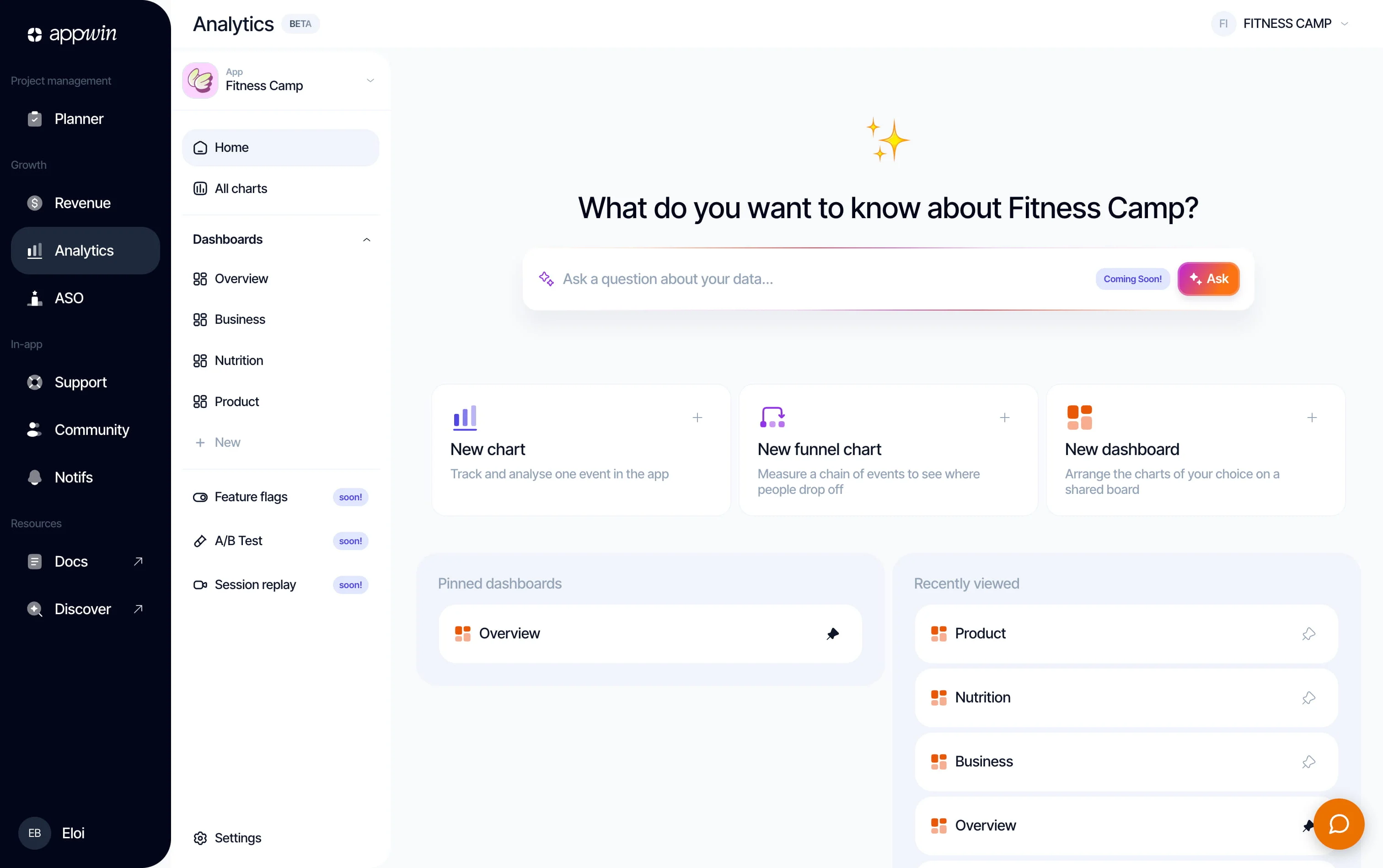
Analytics records the screens people view and the important actions they take in your app. You then use those events in the dashboard: trends, funnels, dashboards.
The SDK tracks installs, updates, and sessions on its own; you declare the screens and business events. No external account: once the SDK is initialized, events appear directly in your Appwin project.
Installation
- 1
Install Appwin Core and Analytics
Analytics relies on Appwin Core. Not installed yet? Start with the Quickstart, which installs Core and your modules for every platform.
Compatibility and packages per platform
Platform Appwin Core Analytics module iOS 16+ AppwinCoreSPM productAppwinAnalyticsSPM productAndroid 7.0+ (API 24) io.appwin:appwin-coreio.appwin:appwin-analyticsFlutter 3.3+ appwin_coreappwin_analyticsReact Native 0.73+ @appwin/react-nativeincluded in the same package - 2
Initialize Analytics
Call
initialize()at startup, after Appwin Core. The result tells you whether Analytics is active on your plan; collection starts on thereadyverdict.import AppwinAnalytics let result = await AppwinAnalytics.initialize() guard result.isReady else { return }Repeated calls are safe: the SDK keeps the last verdict so it can start offline.
Available methods
Check the module state
On iOS and Android, isReady reads the latest verdict without calling
initialize() again. React Native exposes the asynchronous isReady() method.
Flutter has no separate accessor: keep the value returned by initialize().
Decide which events to track
An event should describe something useful for analysis, not the shape of the
interface: onboarding_completed survives a change of button or step count.
Three rules keep a tracking plan useful:
- a stable
snake_casename that reads as a completed action; - variable values in properties, not in the name;
- one emission, when the action is confirmed.
| Avoid | Prefer | Why |
|---|---|---|
click_finish_button | onboarding_completed | Describes the result, not the control. |
plan_selected_pro | plan_selected with plan: "pro" | Every plan stays comparable. |
home_en | home | The screen name does not follow the language. |
Events recorded automatically
| Event | When it is created |
|---|---|
app_install | The first time Analytics starts for this installation. |
app_update | The first session after the app version changes. |
session_start | When a new session begins. |
session_end | When the previous session ends after inactivity. |
Do not send these yourself. screen_view and install_referrer are also
reserved: the first comes from screen(), the second is handled automatically.
Send an event
track() takes an event name and, when needed, a few properties to filter or
compare later.
AppwinAnalytics.track("onboarding_completed", props: [
  "steps_count": 4,
  "notifications_enabled": true,
])
The event goes into a persistent on-device queue without waiting for the network: offline, the SDK uploads it later.
Properties accept only strings, numbers, and booleans. No nested objects, arrays, or personal data you do not need for analysis.
Record screen views
Call screen() when the user actually reaches a screen. Use a stable name that
describes its purpose, even if its title changes.
AppwinAnalytics.screen("home")
Each call produces a screen_view event, then available in filters and funnel
steps.
Associate events with a user
Events use the device and session managed by Appwin Core: no need to add a user identifier to every event.
When your app knows who is signed in, associate the session with that account using Identity. Their events are then recognized across devices.
Configure consent
The SDK defaults to granted. This technical default is not legal guidance: the
initial state depends on your purposes, your configuration, and the rules that
apply to your app.
To wait for a decision, call setConsent(unknown) before configure: the SDK
keeps the first events on the device without sending them, until the state
changes to granted.
AppwinAnalytics.setConsent(.unknown)

AppwinAnalytics.setConsent(.granted) // uploads pending events
AppwinAnalytics.setConsent(.denied)  // purges the queue and stops collection
| State | Local collection | Upload |
|---|---|---|
granted | Yes | Yes, including events that were waiting. |
unknown | Yes | No. |
denied | No | No, and the existing queue is deleted. |
Verify that data is arriving
Start the app, open a screen, trigger a test business event. In the dashboard, open Analytics → All charts: received names appear when you create a chart or funnel.
Uploads happen automatically: every 30 seconds, after 20 events, when the app enters the background, or when the network returns.
Force an upload during a test
flush() uploads pending events immediately. Use it to verify an integration,
not after every event.
If an event does not appear, check in order:
initialize()returnedready;- consent is neither
deniednorunknown; - the name follows the rules below;
- the network is back.
Rules and limits
| Item | Rule enforced by the SDK |
|---|---|
| Event name | 1 to 64 characters matching ^[a-z][a-z0-9_]{0,63}$. |
| Reserved names | session_start, session_end, screen_view, app_install, app_update, install_referrer. |
| Properties | Up to 20 keys; each key is at most 64 characters. |
| Values | String, number, or boolean; strings are truncated to 256 characters. |
| Screen name | Truncated to 128 characters. |
| Local queue | Up to 10,000 events; the oldest are dropped if the limit is exceeded. |
An event with an invalid or reserved name is dropped and produces a development log. The SDK does not throw, so a measurement problem cannot interrupt the app.