Notifications: push and in-app messages
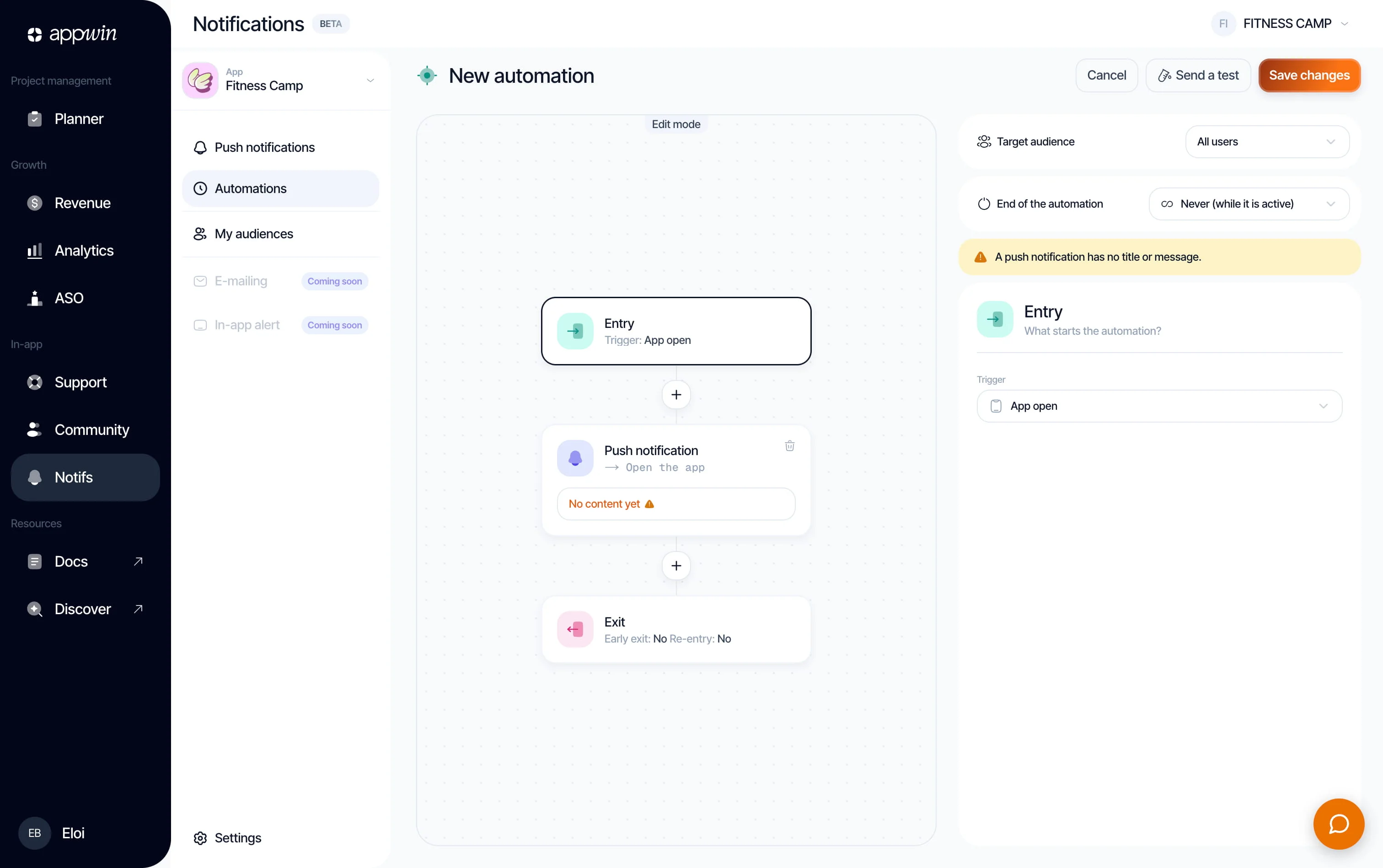
Notifications sends the right message at the right time: campaigns, automated journeys, in-app messages. Four channels (mobile push, in-app, web push, mobile landing) share one audience and measurement engine.
The SDK registers tokens and events; you build campaigns and automations in the dashboard, under Notifications.
Installation
- 1
Install Appwin Core and Notifications
Notifications relies on Appwin Core. Not installed yet? Start with the Quickstart, which installs Core and your modules for every platform.
Connect at least one push key: APNs for iOS, FCM for Android and the web. With no key, the API simulates sends: a campaign can look like it went out with nothing leaving. Check your keys before the first real send.
Compatibility and packages per platform
Platform Package Symbol iOS 16 SPM product AppwinNotificationsAppwinNotificationsAndroid 7.0 (API 24) io.appwin:appwin-notificationsio.appwin.notifications.AppwinNotificationsFlutter 3.3 appwin_notificationsAppwinNotifications.instanceReact Native 0.73 @appwin/react-nativeAppwinNotifications - 2
Initialize Notifications
initialize()asks the server for its verdict;start()takes over the rest: push registration, lifecycle events, realtime delivery and in-app presentation. One call, at launch.import AppwinNotifications AppwinCore.configure(projectAppId: "your-app-id") if await AppwinNotifications.initialize().isReady { // Asks for push permission and registers the APNs token. await AppwinNotifications.start() }isReadyreads the last verdict without callinginitialize()again.stop()undoes everythingstart()installed: it is for an app that turns campaigns off for part of its life (a kids mode, a paused account), not for a sign-out. A sign-out goes throughAppwinCore.logout(), which drops the identity behind the targeting.
Available methods
Push permission and tokens
start() asks for push permission and registers the token. To choose when the
prompt appears, or to forward the Firebase token yourself on Android, take over
per platform.
To ask for permission later, at a moment where the user understands why, run
start(requestPushPermission: false), then:
let granted = try await AppwinNotifications.requestPushAuthorization()
Forward silent pushes so in-app messages arrive mid-session rather than at the next app open. Enable the Remote notifications background mode:
func application(
  _ application: UIApplication,
  didReceiveRemoteNotification userInfo: [AnyHashable: Any]
) async -> UIBackgroundFetchResult {
  if await AppwinPush.handleMessage(userInfo) { return .newData }
  return .noData
}
handleMessage returns true when the push was Appwin's, false otherwise, so
your own handling proceeds.
Trigger an automation
An automation starts from an event. After start(), the SDK already sends the
lifecycle events; what is left to you is what only your app knows: a purchase, a
level finished, an onboarding step.
| Event | Who sends it |
|---|---|
app_open, app_background, session_start, push_opt_in | The SDK, after start() |
purchase | You, with the amount in the properties if the campaign segments on it |
custom_event | You, named through eventName |
try await AppwinNotifications.trackEvent(.purchase, properties: [
  "plan": "pro",
  "amount": "49.00",
])

try await AppwinNotifications.trackEvent(
  .customEvent,
  eventName: "onboarding_finished"
)
A journey's exit event is declared in the same place, and at the same time as the trigger: see Automations.
Render in-app messages yourself
By default the SDK draws the messages: presentPendingMessages() fetches what is
waiting, presents it and reports what becomes of it on its own. syncOnAppOpen()
does the same work on app open, chaining app_open then fetchPendingMessages().
try await AppwinNotifications.presentPendingMessages()
A studio that wants its own screens takes the other route, and inherits the measurement with it, otherwise the campaign reports nothing:
let messages = try await AppwinNotifications.fetchPendingMessages()

for message in messages {
  // Your own rendering.
  try await AppwinNotifications.track(deliveryId: message.deliveryId, event: .opened)
}
Three outcomes to report: opened (shown), clicked (a button or the body was
tapped, with the button index) and dismissed (closed without acting). These are
the funnel steps you will read in Analytics: without them, the
campaign looks like it was never seen.
The channels
| Channel | Where it shows |
|---|---|
| Mobile push | System notification, app closed or in the background |
| In-app | Modal, banner or full screen, app open |
| Web push | Browser, through FCM |
| Mobile landing | A destination page rendered by the SDK |
A campaign can combine several channels; it refuses to go out without content on at least one.
Campaigns
Notifications → Campaigns. A one-off send to an audience. Life cycle:
Draft → Scheduled → Sending → Sent, with Paused and Archived as
branches. A draft stays a draft as long as you want; scheduling requires a
future date and cancelling stays possible until the send has started.
Tutorial: a first campaign
- Notifications → Campaigns → New campaign.
- Name it for your team, not for the user: "Summer promo - iOS push" is still findable in six months.
- Choose the channel, write the title and the message.
- Choose an audience, or set rules on the fly.
- Send now, or Schedule for a date.
- Come back to Analytics an hour later: sent, delivered, opened, clicked.
Make a first send to a narrow audience: a badly worded push cannot be taken back, and it costs uninstalls.
Audiences
Notifications → Audiences. Reusable segments, shared between campaigns and automations. An audience combines rules with AND / OR: platform (iOS, Android, web), language, plan, tags, devices registered on the project.
The number of matching users is estimated live while you build the rules: an audience that drops to zero is visible before the send, not after. A campaign can also carry its rules inline, with no named audience; worth naming as soon as the segment is used again.
Automations
Notifications → Automations. A journey triggered by behaviour, not by a date: onboarding, re-engagement, follow-up after abandonment.
| Setting | What it decides |
|---|---|
| Trigger | The event that brings a user into the journey |
| Steps | The messages, in order, with their delays |
| Exit rules | What interrupts the journey along the way |
| Re-entry | On every trigger, never, never while active, or after a delay |
An automation combines push, email and in-app in a single journey: the message follows the user wherever they are reachable.
Exit rules are not optional
The trigger brings people in, the exit event takes them out. A "you have
not finished signing up" follow-up that keeps going after they signed up is the
best way to get your app uninstalled. Set the exit event at the same time as the
trigger, not afterwards. The events come from the SDK, through trackEvent.
Templates
Notifications → Templates. Reusable models for in-app messages and mobile landings: modal, banner, full screen. A template carries the layout, the campaign carries the content; three campaigns that share a visual identity share a template.
Analytics
Notifications → Analytics. What the sends produced: an engagement funnel (sent → delivered → opened → clicked), a breakdown of volume by channel and by type (campaigns / automations), and per-message performance, message by message.
What to look at first:
| Gap | What it says |
|---|---|
| Sent ≫ delivered | Stale tokens, or the wrong push environment |
| Delivered ≫ opened | The title is not appealing, or the timing is wrong |
| Opened ≫ clicked | The message promises something other than what it opens |
Settings
Notifications → Settings.
- Push channels: the state of the APNs and FCM integrations, with a direct link to their configuration.
- SDK: enabling the product on the project; without it, no device token is registered.
- User preferences: maximum number of devices per user, behaviour beyond that, handling of devices with no opt-in.